01 / spaces
More than one home screen
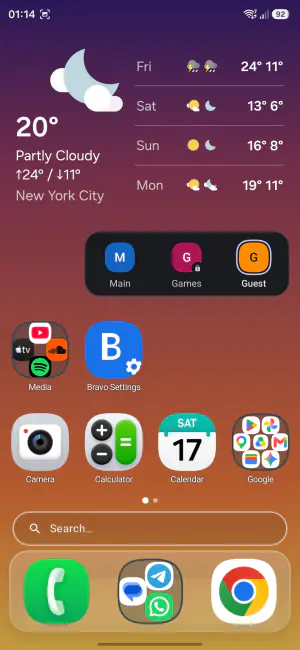
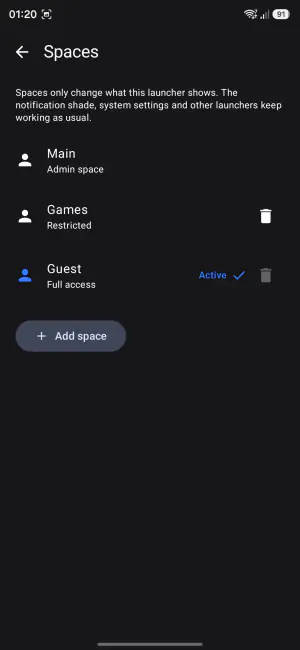
Keep several complete home screens on one phone as spaces, and switch between them from the long-press menu, a gesture or the Spaces widget. Each space has its own layout, look, wallpaper photo and its own set of displayed apps.
- A space can be limited to what this launcher offers: no launcher settings, no home editing, only the apps you choose shown in its drawer, search, home screen, dock and folders, and a screen-lock check before anyone switches away.
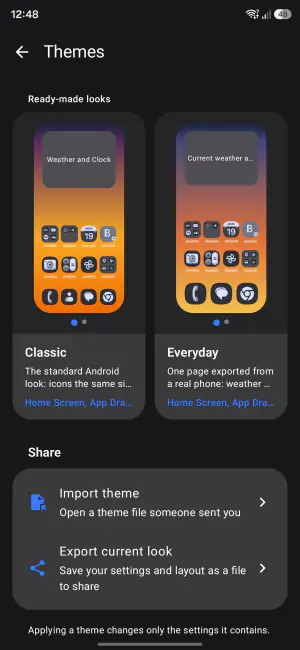
- Themes and copied layouts follow the same list, so a space never shows an app you left out.
- A guest space resets itself when you leave.
Spaces only change what this launcher shows: apps that are not shown still appear in notifications and in Android’s own app list.
03 / folders
Large folders, right on the home screen
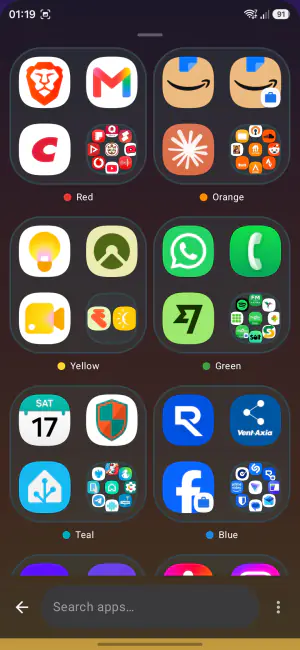
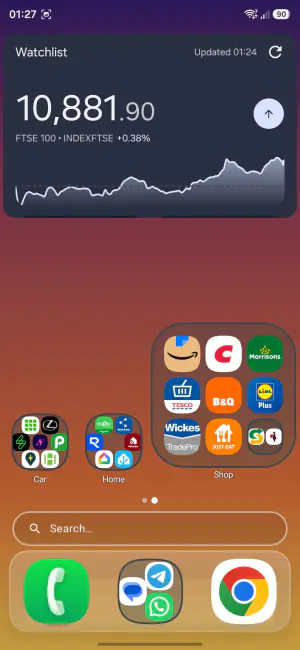
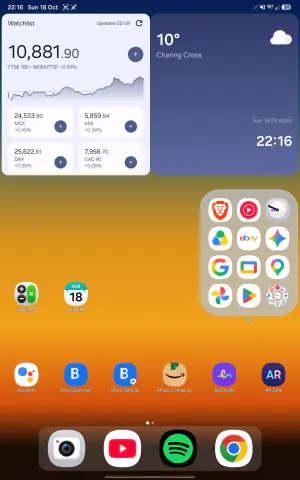
Any folder can grow to a 2×2, 3×2, 2×3 or 3×3 block that shows its apps at full size, lined up with the icons around it — one tap launches them, no folder to open first.
- The last spot is always the folder itself: tap it to open the whole folder, long-press it for rename, resize and remove, drag it to move the block.
- Want more apps in the same space? Pick a denser grid inside, like nine smaller icons in a 2×2 block — the launcher only offers the grids that fit your screen well.
- Resizing shows the change live behind a small card, so you can try block and grid together and tap Done or Cancel.
- Drop an app onto the exact spot you want it, drag apps around inside the block to rearrange them, and drag one out to put it anywhere else; a folder stays a folder even with one app left.
Small folders keep grid, stack, fan or cover previews, and every folder opens as a popup or as a card centered over the blurred home screen, in one color and opacity you choose.
home
Your grid, your rules
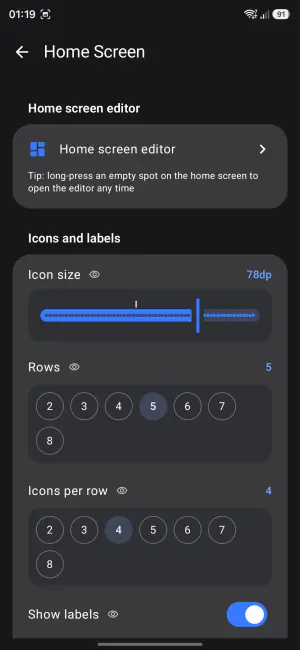
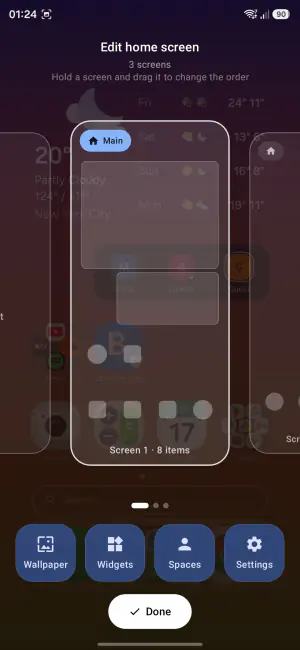
Custom rows and columns, page effects, infinite scroll, auto-arrange, icon labels, padding — arranged exactly how you want it. Icons shrink to fit tight grids instead of clipping their labels. Long-press an icon and a compact menu opens beside it, with the app's own shortcuts. In the screen editor you long-press a screen to drag it into a new order.
search
Search anything, ask anyone
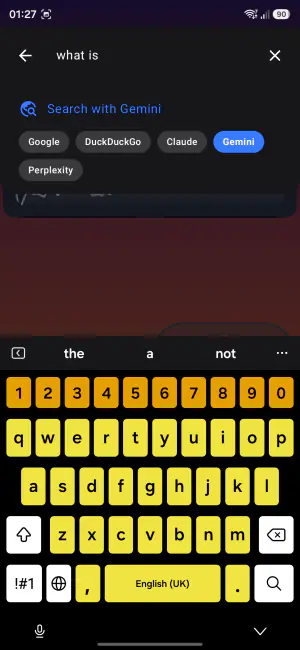
Find any app instantly, type math straight into the search bar, or hand your query to your browser — Google, DuckDuckGo, Bing, or AI search with ChatGPT, Claude, Gemini and Perplexity.
backups
Backups that happen by themselves
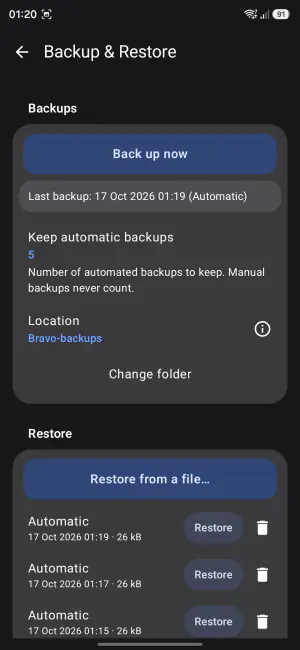
Every time you finish a round of changes, the launcher quietly writes a full backup a moment later. Keep the last 5 to 50, or switch it off; every entry has its own Restore button. Backups are plain files — keep them in the app, or pick a folder and let your own sync app carry them. Coming from another launcher? Restore from a file also reads the backup file your previous launcher wrote.
settings
Every option, one search away
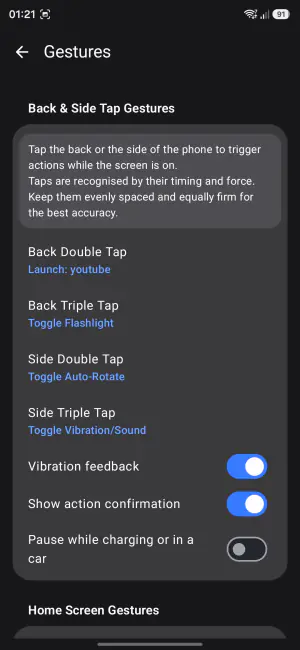
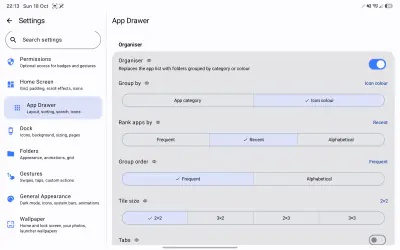
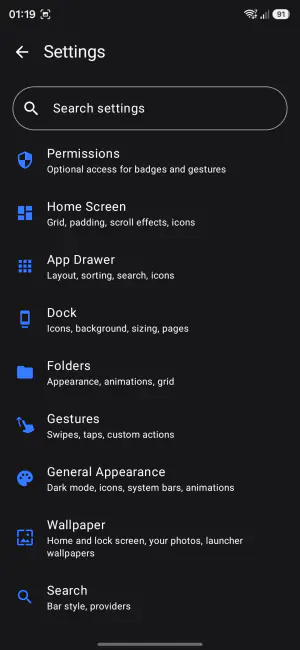
Settings are grouped in plain sections — home screen, drawer, dock, folders, gestures, appearance, wallpaper — and settings search jumps you straight to any option, in your language.
dock
Dock your way — or no dock at all
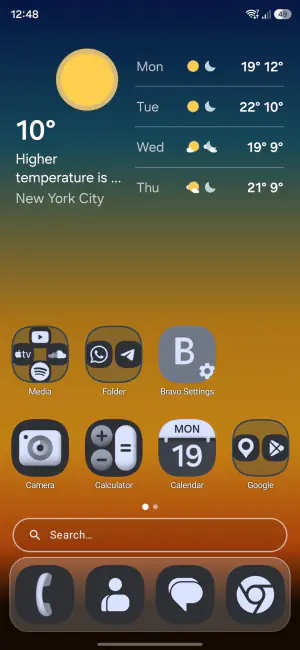
A swipeable multi-page dock with a bar, floating or glass background, automatic height and a color of your choice — or switch the dock off and give the whole screen to your grid.
badges
Notification badges
Dots or counters, positioned and colored your way, with a live preview on your own apps while you set them up — reading only the number of notifications, never their content.
privacy
Hidden apps
Hide the apps you do not want in your drawer or search results, and bring them back whenever you like.
widgets & work profile
Widgets at their real size
Full widget support with resizing, and a widget picker that shows each widget as it will really look, at its real shape. Where an app offers several sizes, swipe through them and add the one you see — or long-press a widget and drag it straight onto any home screen. The launcher's own Search bar widget can be placed and resized anywhere too. Work-profile apps get their badge.
drag & drop
Drag apps anywhere
Drag any app straight out of the drawer or the search results onto a home screen, into the dock or into a folder.