Android launcher · phones & tablets

Tap the back.
Tap the side.
Tap the screen.

Bravo Launcher is a fast, private, deeply customizable Android launcher for phones and tablets. Double- or triple-tap the back of your phone, its edge, or the home screen itself to fire the flashlight, lock the screen, or open any app.

  • Free 30-day trial
  • One-time unlock
  • No ads · no account · no tracking
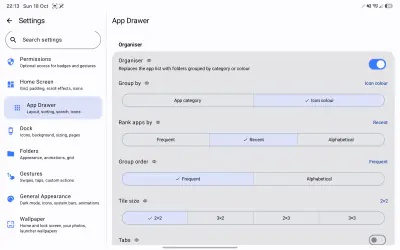
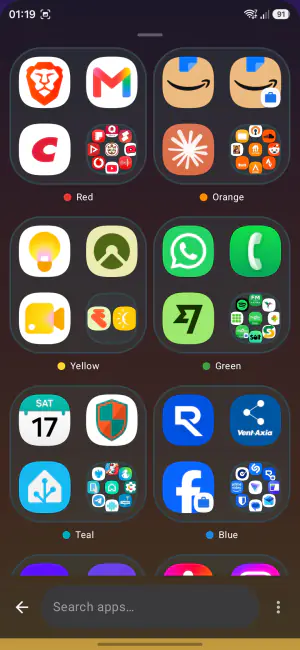
App drawer Organizer grouping apps into tiles by icon color
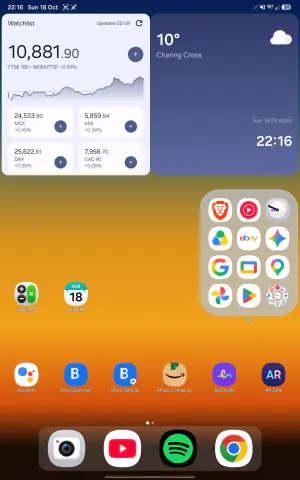
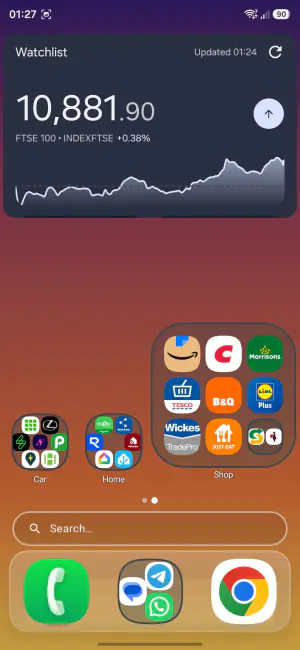
Home screen with a stock widget and a large folder of shopping apps
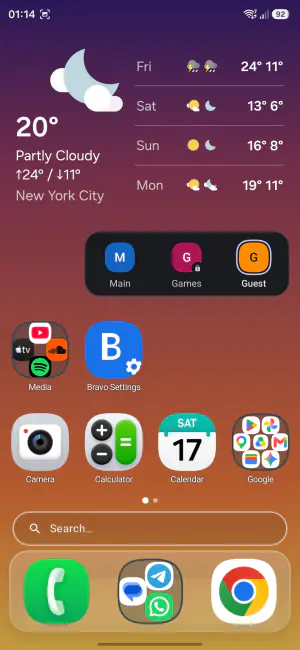
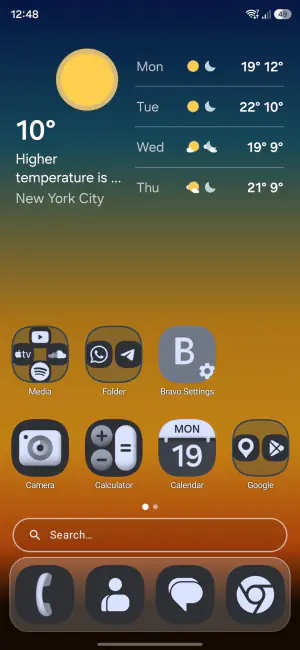
Bravo Launcher home screen with a weather widget, the Spaces widget, app icons and the dock
0trackers
0ads
0network calls
100%on-device
19languages
Gestures

Every surface is a button

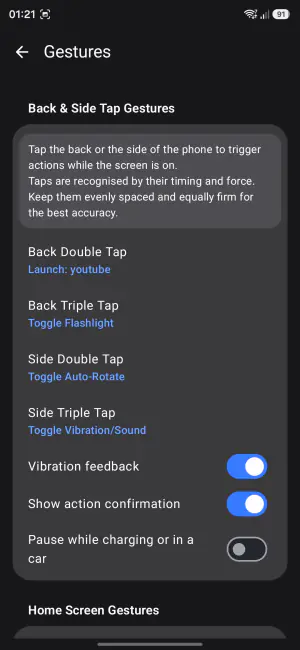
Back and side taps are read from the accelerometer — not the microphone, not the camera — with filtering tuned on real-world recordings to tell deliberate taps from bumps, drops and table knocks. Every fired tap confirms itself: a short buzz, and for toggles you can't see — auto-rotate, sound, flashlight, mute — a small pill at the top of the screen tells you which state you landed in. Screen taps and gestures come on top.

Back tap — double & triple

Tap twice or three times on the back cover. Works with a case, works while other apps are open, with self-tuning sensitivity and false-positive filtering.

Side tap — double & triple

Tap the edge of the phone instead — easier one-handed, and completely separate from the back gesture, so you get four extra shortcuts in total.

Screen taps & gestures

Double- or triple-tap empty space on the home screen — or go further with swipes, pinches, two-finger gestures and long-press. Fourteen remappable slots in all.

Gestures settings: back double tap launches an app, back triple tap toggles the flashlight, side taps toggle auto-rotate and sound

Assign any action to any tap

toggle flashlight lock screen expand notifications open any app launch search recent apps mute / unmute media ring / vibrate auto-rotate show hidden apps …and more

How to tap & what to expect

Tap with your fingertip — crisp, short taps with the same finger at even strength. It takes a little getting used to; once you find the rhythm, taps should work reliably in everyday use. It isn't perfect: an occasional missed tap or false trigger can happen.

Want to help improve detection? Turn on Settings → Debug → Tap trace logging in the app, reproduce the problem, export the capture and attach it to an issue on github.com/BravoLauncher/BravoLauncher. Traces contain motion-sensor data and basic device details only — no personal information.

Not every phone is compatible. Back and side taps depend on the phone's motion sensor and on how its vibration motor behaves, and both vary by model. On some phones the feature may not work at all, and on others the launcher automatically turns off parts of the tap functionality — for example the confirmation vibration, or one of the double/triple variants — to keep detection reliable on that hardware.

Tablets: tap detection is tuned on phones; on a tablet taps usually need to be firmer, and back taps are not detected while the tablet lies flat or sits in a stand. Everything else in the launcher works the same regardless.

Features

Everything a launcher should be

Fast, Material You native, and customizable down to the pixel — without ever phoning home.

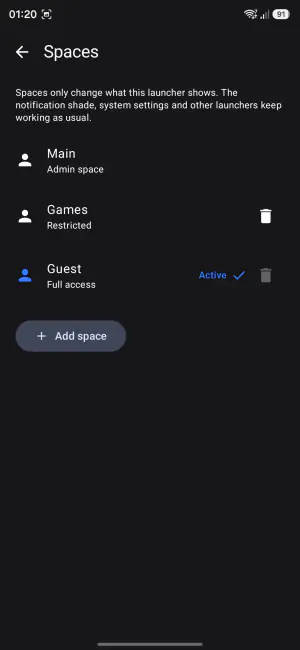
Spaces screen listing three spaces: Main with admin space, Games restricted, and Guest with full access
01 / spaces

More than one home screen

Keep several complete home screens on one phone as spaces, and switch between them from the long-press menu, a gesture or the Spaces widget. Each space has its own layout, look, wallpaper photo and its own set of displayed apps.

  • A space can be limited to what this launcher offers: no launcher settings, no home editing, only the apps you choose shown in its drawer, search, home screen, dock and folders, and a screen-lock check before anyone switches away.
  • Themes and copied layouts follow the same list, so a space never shows an app you left out.
  • A guest space resets itself when you leave.

Spaces only change what this launcher shows: apps that are not shown still appear in notifications and in Android’s own app list.

App drawer Organizer with tiles grouped by icon color: red, orange, yellow, green, teal and blue
02 / organizer

A drawer that sorts itself

Switch on the Organizer and the All Apps list becomes App Library style tiles: your apps grouped into folders by category — social, games, tools, finance and so on — or by the color of their icons. Inside each tile the apps you use most come first.

  • Categories are worked out on the phone from the app itself, with no network and no lookup service; if one lands in the wrong group, long-press it and move it, and your choice sticks.
  • Compact or detailed group names, ranking by usage, recent or name, and the same folder look you set for the home screen.
  • Prefer a classic drawer? It slides up under your finger one-to-one, in grid, list or card layout, with optional group tabs, alphabet fast-scroll and sorting by name, frequency or most recent.
Home screen with a stock-market widget and a 3×3 large folder showing shopping apps at full size
03 / folders

Large folders, right on the home screen

Any folder can grow to a 2×2, 3×2, 2×3 or 3×3 block that shows its apps at full size, lined up with the icons around it — one tap launches them, no folder to open first.

  • The last spot is always the folder itself: tap it to open the whole folder, long-press it for rename, resize and remove, drag it to move the block.
  • Want more apps in the same space? Pick a denser grid inside, like nine smaller icons in a 2×2 block — the launcher only offers the grids that fit your screen well.
  • Resizing shows the change live behind a small card, so you can try block and grid together and tap Done or Cancel.
  • Drop an app onto the exact spot you want it, drag apps around inside the block to rearrange them, and drag one out to put it anywhere else; a folder stays a folder even with one app left.

Small folders keep grid, stack, fan or cover previews, and every folder opens as a popup or as a card centered over the blurred home screen, in one color and opacity you choose.

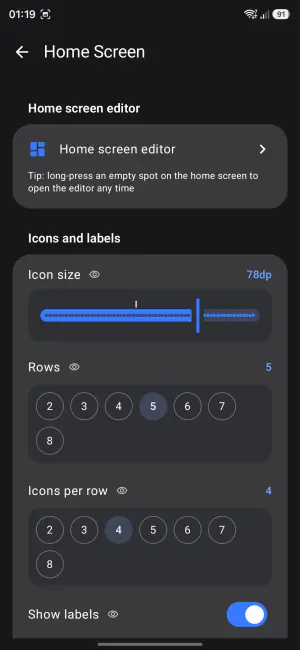
Home Screen settings with icon size, rows and icons per row, each with an eye icon for live preview
04 / preview

See it before you keep it

Hold any switch, slider or option in Settings and the settings page fades away so the real home screen shows the change live under your finger. Release to keep it, or slide back to where you were.

  • Options that can be previewed carry a small eye icon.
  • Adjust, hold, adjust again — until it looks right.
Home screen with monochrome themed icons over a sunset wallpaper
05 / looks

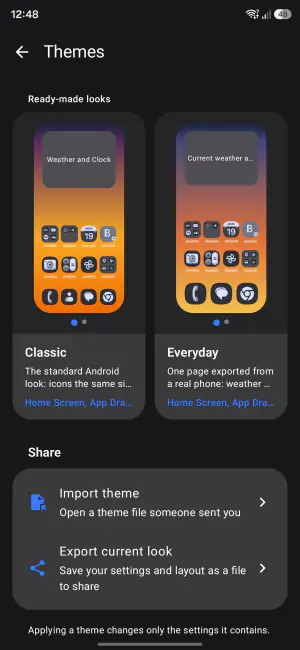
Themes you can share

Export your whole look — grid, dock, drawer, icon style and where every icon, folder and widget sits — as a small file, send it to a friend, and import theirs.

  • Preview any theme live on your own home screen with Keep and Revert, let missing apps be filled with the same kind of app you already have, and bring widgets across when your phone has them.
  • Nothing is downloaded: a theme only arrives as a file you open.
  • On a fresh install the home screen asks which starting look you want — including a Classic look with familiar stock-sized icons.
  • Material You, everywhere: dynamic colors from your wallpaper (Android 12+), monochrome themed icons, icon packs, custom icon shapes, per-app icons and labels, and a dark theme that follows your phone or stays on or off.
Tablet home screen with widgets, a large folder and the dock
Tablet settings shown as a list on the left and the App Drawer options on the right
06 / tablets

Made for the big screen too

On tablets the launcher rotates freely, starts with a roomier grid, centers the dock and shows settings as a list-and-detail pair.

  • A six-by-five grid that fills the screen, with widgets and icons side by side.
  • Large folders open their apps right on the page.
  • Settings on the left, options on the right — no going back and forth.
home

Your grid, your rules

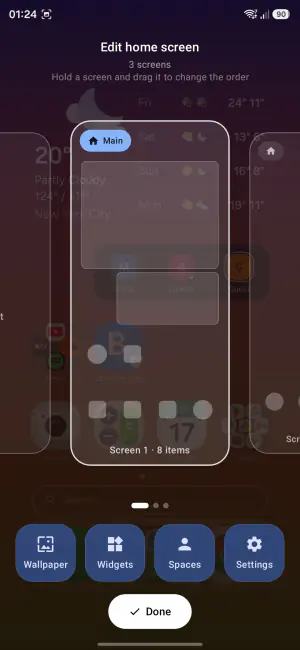
Custom rows and columns, page effects, infinite scroll, auto-arrange, icon labels, padding — arranged exactly how you want it. Icons shrink to fit tight grids instead of clipping their labels. Long-press an icon and a compact menu opens beside it, with the app's own shortcuts. In the screen editor you long-press a screen to drag it into a new order.

Edit home screen mode showing three screens to reorder, with Wallpaper, Widgets, Spaces and Settings buttons
search

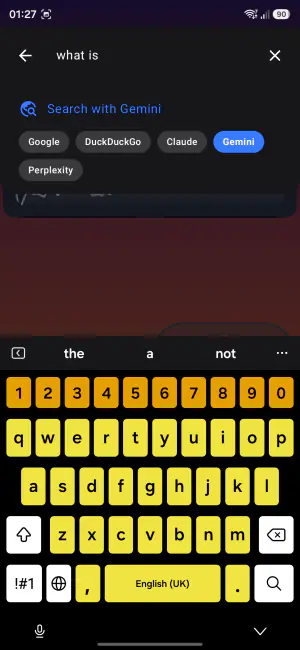
Search anything, ask anyone

Find any app instantly, type math straight into the search bar, or hand your query to your browser — Google, DuckDuckGo, Bing, or AI search with ChatGPT, Claude, Gemini and Perplexity.

Search screen offering to search the web with Google, DuckDuckGo, Claude, Gemini or Perplexity
backups

Backups that happen by themselves

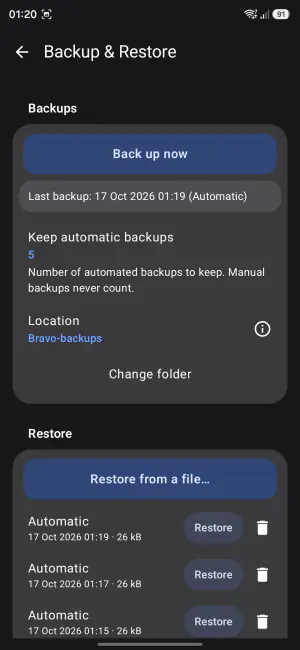
Every time you finish a round of changes, the launcher quietly writes a full backup a moment later. Keep the last 5 to 50, or switch it off; every entry has its own Restore button. Backups are plain files — keep them in the app, or pick a folder and let your own sync app carry them. Coming from another launcher? Restore from a file also reads the backup file your previous launcher wrote.

Backup and Restore screen with automatic backups, each with its own Restore button
settings

Every option, one search away

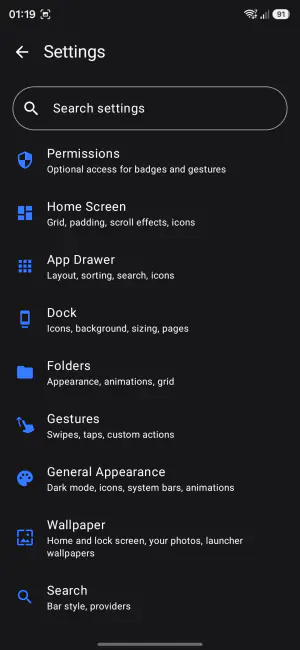
Settings are grouped in plain sections — home screen, drawer, dock, folders, gestures, appearance, wallpaper — and settings search jumps you straight to any option, in your language.

Settings list with a search field and sections for permissions, home screen, app drawer, dock, folders, gestures, appearance, wallpaper and search
dock

Dock your way — or no dock at all

A swipeable multi-page dock with a bar, floating or glass background, automatic height and a color of your choice — or switch the dock off and give the whole screen to your grid.

badges

Notification badges

Dots or counters, positioned and colored your way, with a live preview on your own apps while you set them up — reading only the number of notifications, never their content.

privacy

Hidden apps

Hide the apps you do not want in your drawer or search results, and bring them back whenever you like.

widgets & work profile

Widgets at their real size

Full widget support with resizing, and a widget picker that shows each widget as it will really look, at its real shape. Where an app offers several sizes, swipe through them and add the one you see — or long-press a widget and drag it straight onto any home screen. The launcher's own Search bar widget can be placed and resized anywhere too. Work-profile apps get their badge.

drag & drop

Drag apps anywhere

Drag any app straight out of the drawer or the search results onto a home screen, into the dock or into a folder.
Screenshots

A closer look

The same images you'll find on Google Play. Tap any of them to view it full size.

Languages

Speaks your language

Bravo Launcher is fully translated into 19 languages — every setting, every gesture, even settings search works in your language. Arabic gets proper right-to-left layout, and on Android 13+ you can give Bravo its own language, separate from the rest of your phone.

English Deutsch Français Español Italiano Português Nederlands Polski Čeština Magyar Română Ελληνικά Türkçe Українська العربية हिन्दी 中文(简体) Tiếng Việt Bahasa Indonesia
Pricing

Free to try. Unlock once.

The full version is free to try for 30 days. After that, the premium features need a one-time unlock. There are no ads and no subscription, with or without the unlock.

Always free

The core launcher

Without the unlock, the core features stay free — and your home screen keeps its layout and look.

  • Home screen
  • App drawer
  • Dock
  • Folders
  • Widgets
  • Search
  • Notification badges
30-day trial, then a one-time unlock

The full version

Everything in the core launcher, plus the premium features:

  • Back, side, double & triple tap gestures
  • Spaces
  • App drawer Organizer
  • Large folders
  • Themes
  • Backup, restore & automatic backups
  • Icon packs, shapes & monochrome icons
  • Icon sizes, labels & label pills
  • Folder colors
  • Auto-arrange, lock desktop, scrollable wallpaper & infinite scroll
Start the free trial No subscription · price shown on Google Play

Your home screen is nobody's business

Bravo Launcher contains no analytics, no ad SDKs and no crash reporters. It makes no network connections — your app list, usage patterns and settings never leave your device. It started as a launcher the developer built for their own privacy, and it ships exactly that way.

  • No data collected, ever
  • No account, no sign-in
  • Every sensitive permission is optional
  • Notification access reads counts only
  • Accessibility service (AccessibilityService API) is for gestures only, asks for your consent and can't see your screen
  • Backups stay in your hands
FAQ

Good to know

Is Bravo Launcher free?

The full version is free to try for 30 days. After that, the premium features need a one-time unlock — there is no subscription. Without the unlock, the core features stay free: home screen, drawer, dock, folders, widgets, search and badges, and the home screen keeps its layout and look. There are no ads either way. See what's included.

Will back tap and side tap work on my phone?

Back and side taps depend on the phone's motion sensor and on how its vibration motor behaves, and both vary by model. On some phones the feature may not work at all, and on others the launcher automatically turns off parts of the tap functionality to keep detection reliable on that hardware. Everything else in the launcher works the same regardless.

The 30-day trial is a good way to find out on your own phone. How to tap & what to expect.

My phone switched from gesture navigation to buttons. Why?

On some phones the system turns off gesture navigation while a launcher other than the built-in one is the default. That is a limit of the phone, not something a launcher can change.

Does Bravo Launcher collect any data?

No. It contains no analytics, no ad libraries and no crash reporters, and it makes no network connections. Apps, usage and settings stay on the device.

One note: when the phone's Android "Usage & diagnostics" setting is on, Android and Google Play send crash reports for this launcher too, to Google, as they do for any app; the developer only sees them as anonymized crash data in the Play Console. Read the privacy policy.

What is the Accessibility service used for?

It is optional. Android's AccessibilityService API is used only for the lock screen, recent apps and notification actions you assign to taps and gestures. It cannot read the screen or what is typed, and the launcher asks for your consent before you turn it on.

Where do I report a problem or ask for a feature?

Open an issue on github.com/BravoLauncher/BravoLauncher — for tap problems, attach a tap trace export (Settings → Debug → Tap trace logging). Questions about the privacy policy and security reports go to bravolauncher@ergton.com.

Built to last

Bravo Launcher is in active development. And it has an end-of-life plan: if the day ever comes when we can no longer maintain it, our intention is to release the source code so the community can carry it forward. Bravo Launcher was built to outlast us.

Make your home screen yours.

Try every feature free for 30 days. No account, no ads, nothing leaves your phone.

Get it on Google Play